
CloudStation Studio: an AI video team you direct with notes
CloudStation Studio gives you a team of AI video experts inside the chat. Ask Charlie for a launch video, promo, explainer or ad, pin notes on the draft, and download the final video when you approve it.
CloudStation Studio is a workspace in the CloudStation chat where a team of AI video experts makes a video with you. You ask Charlie for a launch video, a promo, an explainer, a motion graphic or an ad. Charlie hires the team, the team builds a draft from your real product, and you direct it with notes pinned on the video until you approve the final cut.
The video below was made this way. It is the launch video for the Studio itself.
What can the video team make?
The team makes short videos for a product or a business, in 16:9 for a website and YouTube or in 9:16 for Reels, Shorts and TikTok.
- Launch videos for a new product or a new feature.
- Promo videos and animated ads for social posts and campaigns.
- Explainers that walk a viewer through how a product works.
- Motion graphics in your brand colours, font and logo.
- A video like one you already like. Send a link and the team copies its structure, pacing and moves, with your product in place of theirs.
- A video from your own screen recordings. Send the recordings and they become the product footage.
You do not need to know video editing. The team lead asks at most three questions, each with a default, so “you decide” is a full answer: what the video is for and where it will be posted, a video whose style you like, and which product it should show.
Who is on the AI video team?
Five specialists work on each video, and each one has a single job.
| Role | What it does |
|---|---|
| Motion team lead | Runs the video with you. Writes the brief and the script, gives out the work and tells you what changed after each round. |
| Reference analyst | Studies the video you like, scene by scene, and writes down its structure, timing and moves. |
| Screen capturer | Captures the real screens of your product from its website or app. |
| Builder | Animates the video with your brand, pictures and music, and applies your notes. |
| Reviewer | Checks every draft against the brief before you see it, and checks the final file. |
The reference analyst and the screen capturer work at the same time. The builder starts when they finish, and the reviewer checks the builder’s draft. If the reviewer finds a problem, the builder fixes it before the draft reaches you.
How does CloudStation Studio work?
- Ask Charlie. Write what you want in the chat, for example “Make a 30 second promo video for our new booking page, in the style of this video”, and add the link.
- Open the Studio. Charlie hands the work to the Motion team lead and shows a card with the team. Press Open Studio. From here you talk to the team lead, and you can go back to Charlie’s chat at any time.
- Answer the questions. The team lead shows the script and the storyboard first. Nothing is animated until you answer.
- Watch the work arrive. The Studio shows what each team member is doing, and the brand screens and reference frames as they are made.
- Review the draft. The draft plays in the Studio as a live player, not a rendered file, so each round of changes comes back quickly.
- Approve and download. When it looks right, press Approve video. The team renders the final video once, the reviewer checks the file, and a card with Download MP4 appears in your chat.
How do you give the team feedback?
You give feedback on the video itself, the way you would mark up a design for a designer.
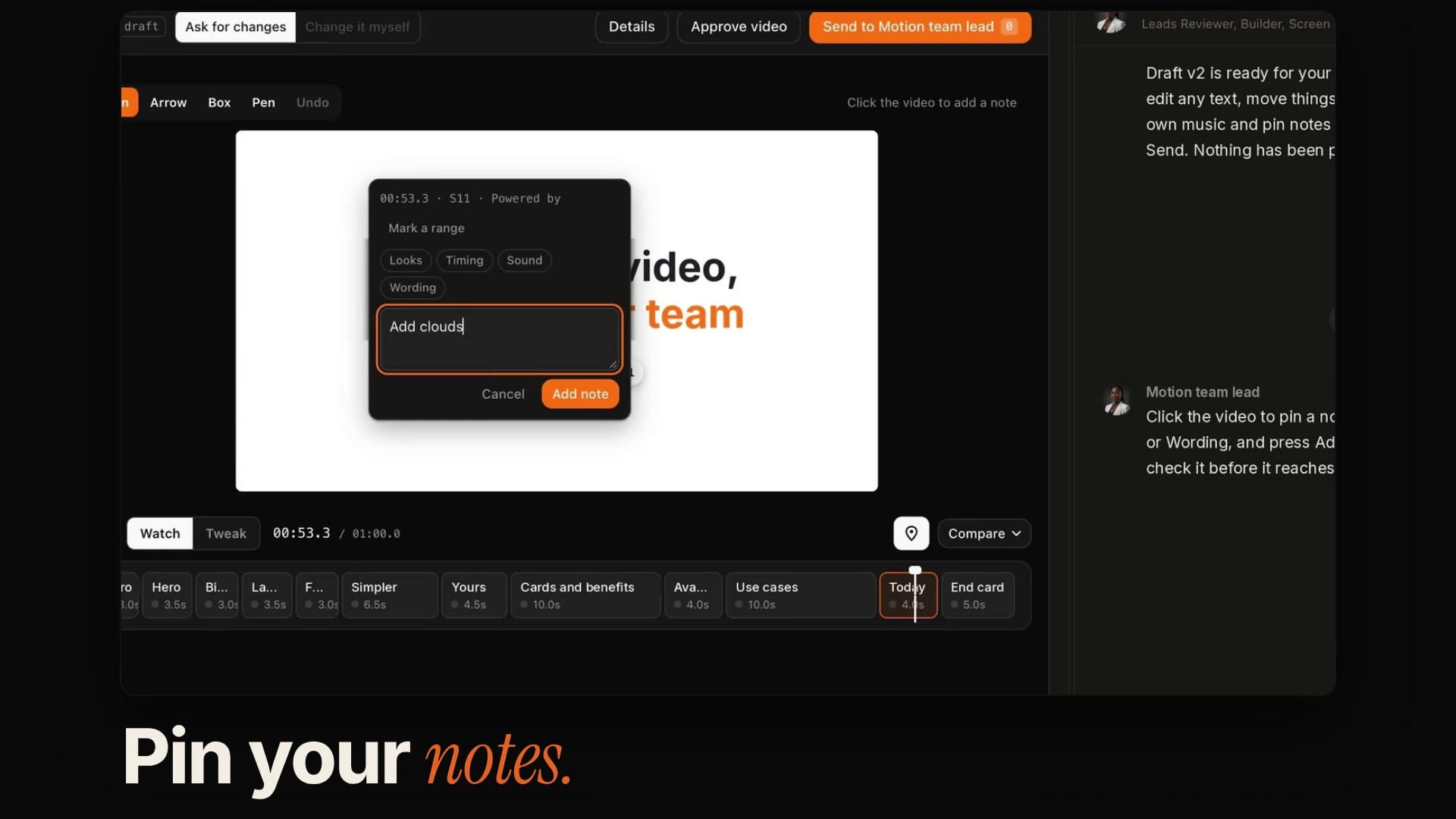
- Pin a note. Click the video at the moment you want changed, tag the note Looks, Timing, Sound or Wording, and press Add note. Mark a range when the note covers a stretch of time.
- Draw on the frame. Use Arrow, Box or Pen to point at the exact spot.
- Change it yourself. Edit any text, move things, swap the logo or add your own music in the player, without waiting for a round.
- Send everything at once. Send to Motion team lead passes all your notes together, and the next draft comes back with each one answered.
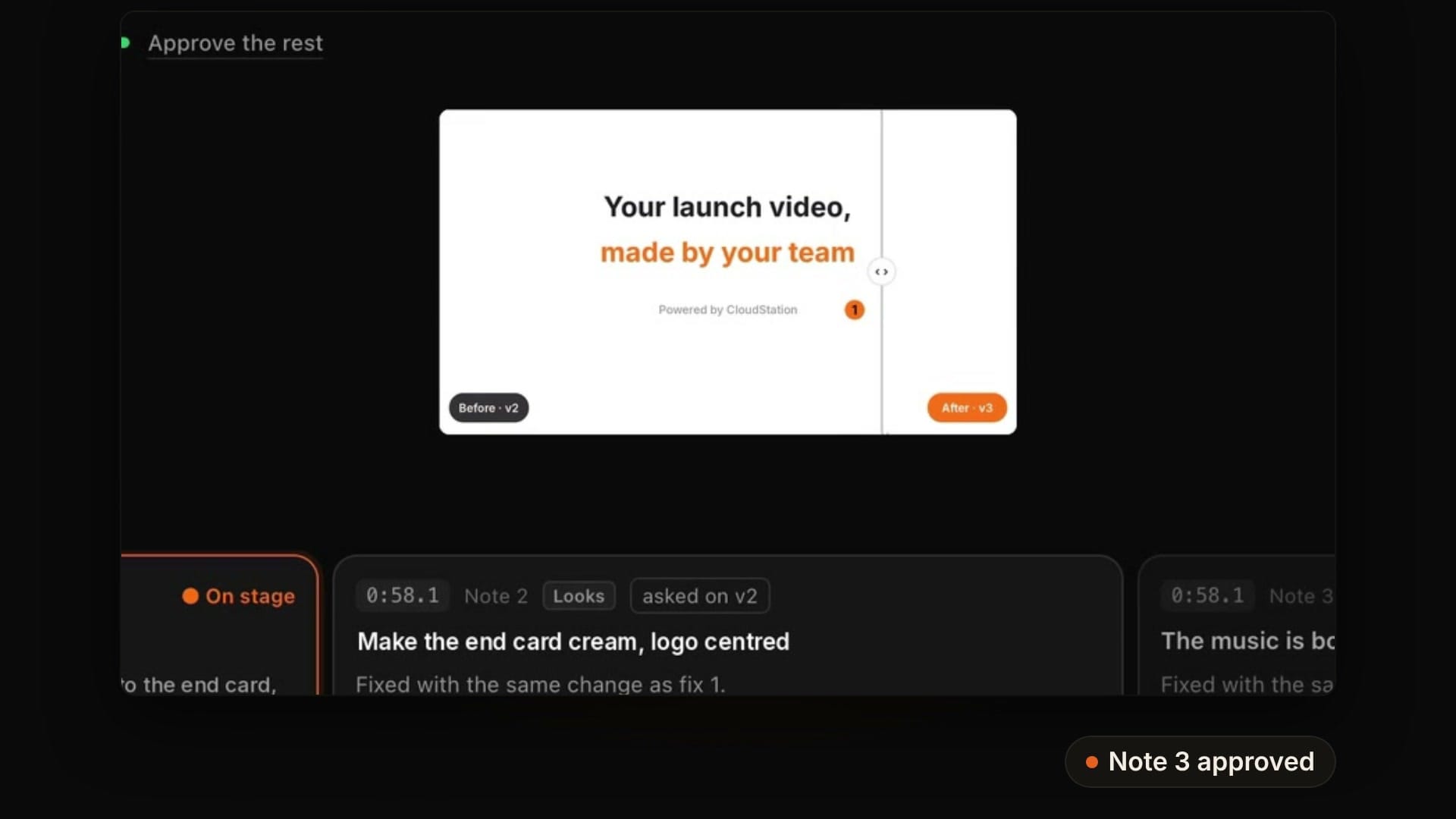
Compare shows a fix before and after on the same frame, next to the note that asked for it. You approve the fixes one by one or all at once, so you can see that every note was done.
Why a team instead of an AI video generator?
An AI video generator turns one prompt into one clip. When the clip is wrong, you rewrite the prompt and try again. The Studio works like a small video studio instead: people with separate jobs, a draft you can mark up, and a final file made once.
| One-prompt video generator | CloudStation Studio | |
|---|---|---|
| Product shots | Usually generated footage | Your real product screens or your own recordings |
| Asking for changes | Rewrite the prompt | Pin a note on the exact frame |
| Checking the work | You check every clip | A reviewer checks each draft before you see it |
| Earlier versions | Start again each time | Every fix compared before and after |
| Final file | Made on every attempt | Rendered once, after you approve |
What happens after the video is done?
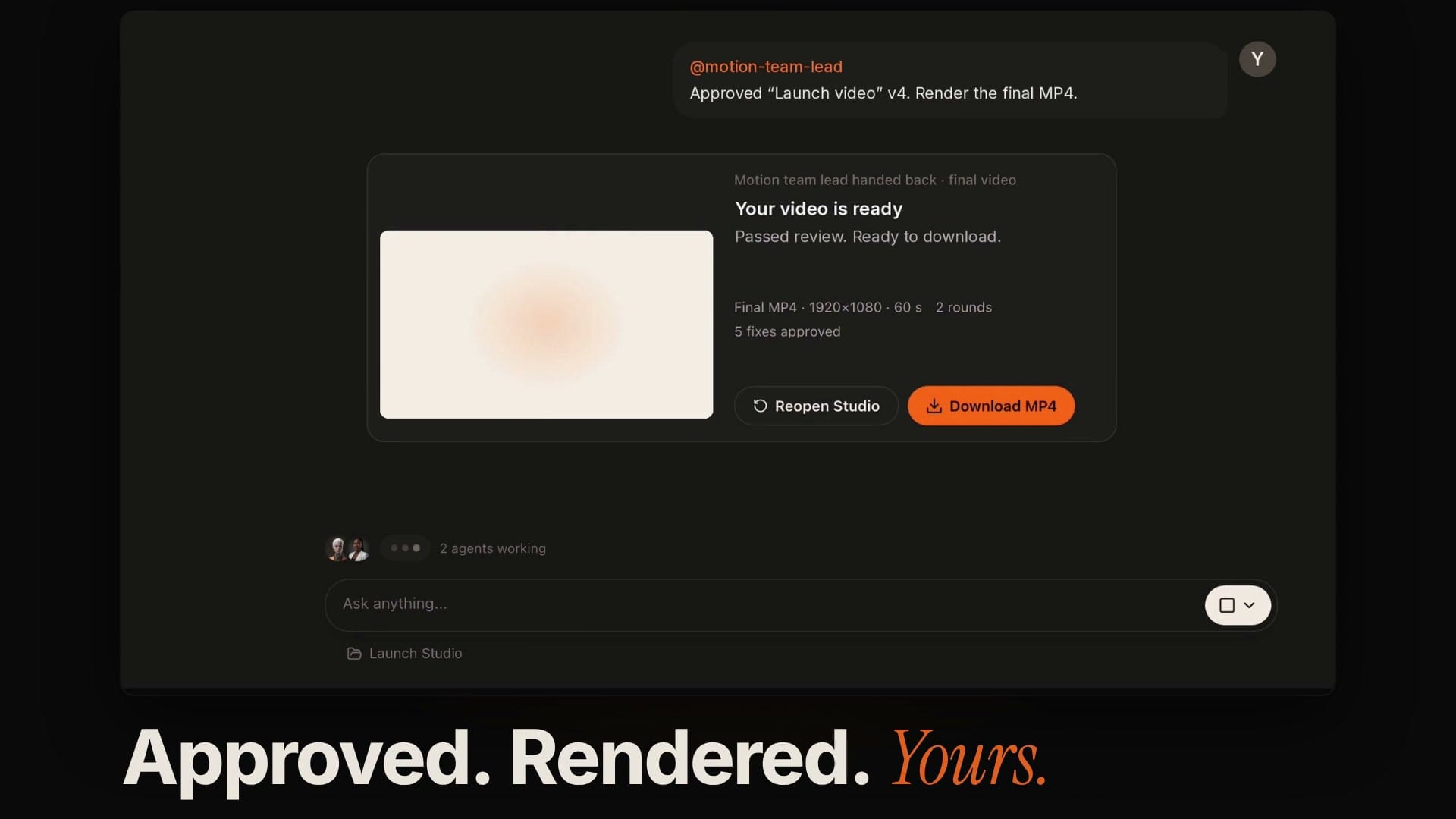
The team lead hands the chat back to Charlie with a card that shows the final video, its size and length, how many rounds it took and how many fixes you approved. Press Download MP4 to save it. Reopen Studio brings the team back to the same project when you want a new cut or a different ending.
What do you need to start?
A CloudStation account with Charlie. The team takes your logo, colours and font from your product’s website. For generated pictures and music it uses the services you have already connected to CloudStation, such as your ChatGPT subscription. It never asks you to pay for a new service to make a picture the video can do without.
Frequently asked questions
Is CloudStation Studio only for launch videos?
No. The same team makes promo videos, explainers, motion graphics and animated ads. A launch video is the default when you do not say what the video is for.
Can the team use my own screen recordings?
Yes. Send them in the chat with your request. Your recordings become the product footage, and the team builds the titles, motion and music around them.
Can it make vertical videos for Reels, Shorts and TikTok?
Yes. Say where the video will be posted, and the team builds it at 1080x1920 for vertical platforms or 1920x1080 for a website and YouTube.
Do I need video editing skills?
No. You answer up to three questions, then react to the draft with notes. The team makes every design decision and explains what it changed in plain words.
Can I change the video after I approve it?
Yes. Press Reopen Studio on the final video card. The same team picks up the same project, and you give notes on the new draft as before.
Can Charlie still help while the Studio is open?
Yes. The team lead can call Charlie in as a guest for work outside the team, and you can go back to Charlie’s chat at any time.
Try it
Open CloudStation and ask Charlie: “Make a 30 second launch video for my product. Here is a video I like.” Add the link, then press Open Studio. The short version of this announcement is in the changelog.
More in AI Agents
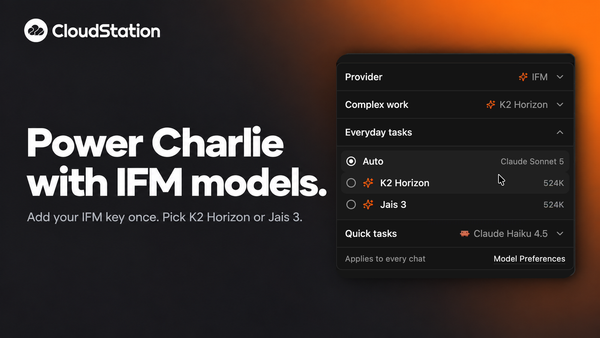
Power Charlie with IFM models
Charlie and the agents it hires can now run on IFM's K2 Horizon and Jais 3. Add your IFM key once in AI Providers and pick the model for each kind of work.
Why Do WhatsApp Business Messages Cost 1000% More Than They Should?
The shocking truth about WhatsApp Business API pricing that your current provider doesn't want you to discover - and the open-source solution that gives you the same enterprise messaging capabilities for 97% less.
Get an AI assistant that actually does your work - ready in 10 minutes
Deploy your own autonomous AI agent in 10 minutes. Agent Zero doesn't just chat - it writes code, executes commands, and learns from every interaction. This guide shows you exactly how to set it up locally with full control, or deploy instantly on CloudStation.